Architecture of 5G is highly advanced, its network elements and various terminals are characteristically upgraded to afford a new situation. Likewise, service providers can implement the advance technology to adopt the value-added services easily.
However, upgradeability is based upon cognitive radio technology that includes various significant features such as ability of devices to identify their geographical location as well as weather, temperature, etc. Cognitive radio technology acts as a transceiver (beam) that perceptively can catch and respond radio signals in its operating environment. Further, it promptly distinguishes the changes in its environment and hence respond accordingly to provide uninterrupted quality service.
Architecture of 5G
As shown in the following image, the system model of 5G is entirely IP based model designed for the wireless and mobile networks.
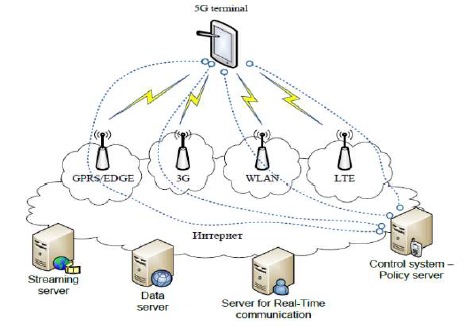
The system comprising of a main user terminal and then a number of independent and autonomous radio access technologies. Each of the radio technologies is considered as the IP link for the outside internet world. The IP technology is designed exclusively to ensure sufficient control data for appropriate routing of IP packets related to a certain application connections i.e. sessions between client applications and servers somewhere on the Internet. Moreover, to make accessible routing of packets should be fixed in accordance with the given policies of the user (as shown in the image given below).
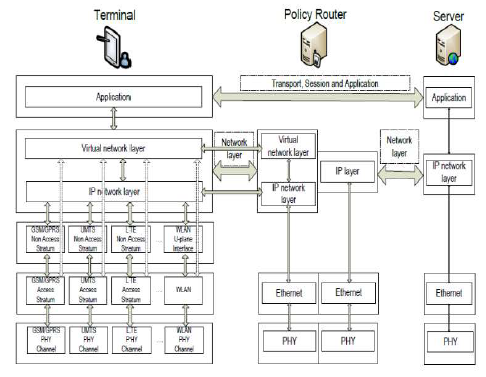
The Master Core Technology
As shown in the Figure 5, the 5G MasterCore is convergence point for the other technologies, which have their own impact on existing wireless network. Interestingly, its design facilitates MasterCore to get operated into parallel multimode including all IP network mode and 5G network mode. In this mode (as shown in the image given below), it controls all network technologies of RAN and Different Access Networks (DAT). Since, the technology is compatible and manages all the new deployments (based on 5G), it is more efficient, less complicated, and more powerful.
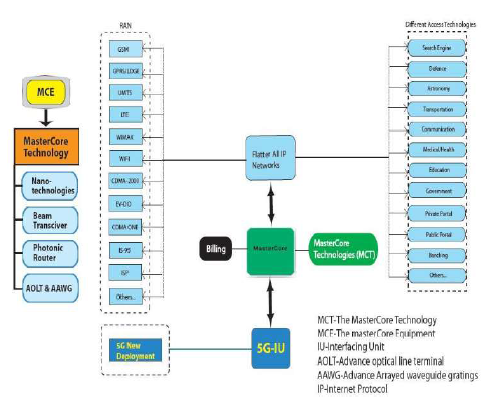
Surprisingly, any service mode can be opened under 5G New Deployment Mode as World Combination Service Mode (WCSM). WCSM is a wonderful feature of this technology; for example, if a professor writes on the white board in a country – it can be displayed on another white board in any other part of the world besides conversation and video. Further, a new services can be easily added through parallel multimode service.
Comments
Post a Comment