As you know, in DNS you can add records according to your need and in Windows server 2012 as well. This doesn’t change too much from its earlier version of Windows Server 2008.
To add or manage records, we have to follow the steps given below −
Step 1 − Server Manager → DNS → Right click on the server that has a DNS record, which in our case is local.
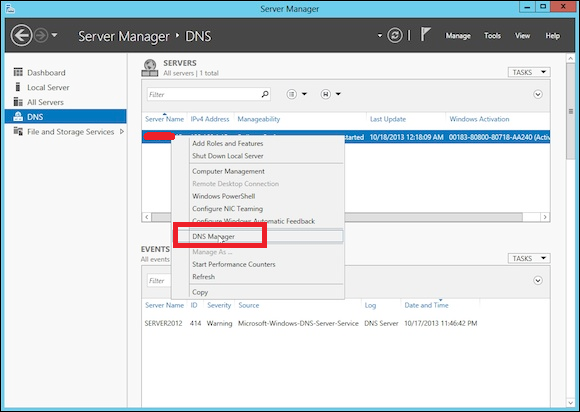
Local
Step 2 − Go to “Forward Lookup Zone”.
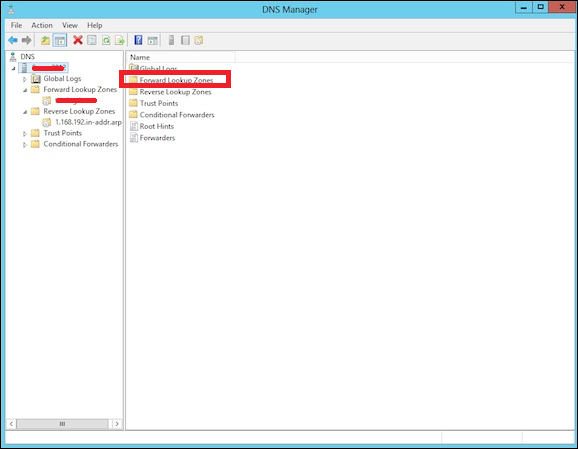
Forward Lookup Zone
Step 3 − Right Click on the empty Field → New Host (A or AAAA) …
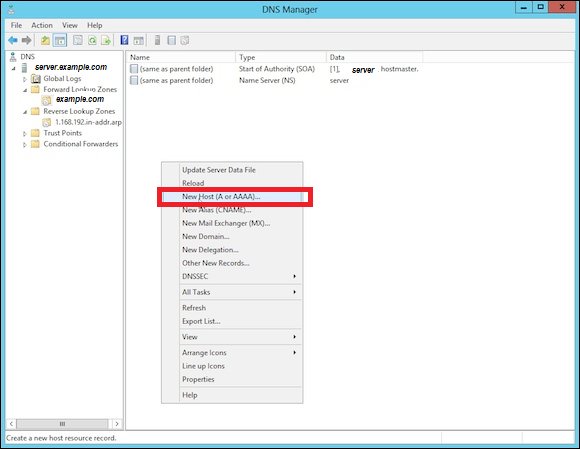
New Host
Step 4 − Name field and the subdomain name or case is WWW. → IP address we put is 192.168.1.200. So, when we will type-in our browser www.example.com, it will redirect us to 192.168.1.200.
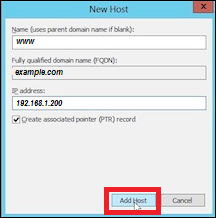
Add Host
Step 5 − To add a Mail Server Record, we add an MX record and then Right click → New Mail Exchanger as shown in the screenshot given below.
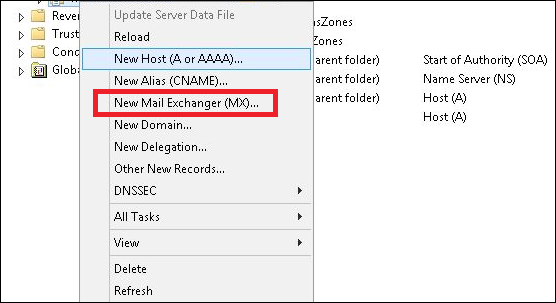
New Mail Exchanger
Step 6 − At “Fully qualifies domain name(FQDN) of mail server”, you enter the name of mail server → then in the “Mail server priority”, you enter a number. The smaller the number, the higher the priority.
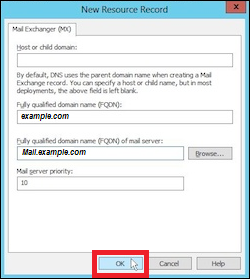
FQDN

Comments

Popular posts from this blog

HaydarOrac

Windows Server 2012 codenamed Windows Server 8 is the most recent version of the operating system from Microsoft regarding server management. But it is not the last one, as the last one is Windows Server 2016. Officially it was released on August 1st, 2012 and is being sold as a commercial version only. Improvements in Windows Server 2012 The major Improvements on this version are as follows − It is ready to be integrated with cloud systems and it still can maintain the classic features of local datacenters as a result  Hyper-V Virtualization  has new features  Hyper-v replicas , it allows you to create virtual machines replications between clusters and storage systems. The  Storage migration  virtual disks can be moved to different physical storages, Virtual machine snapshots, virtual machines can be deleted from the Hyper-v and also from the virtual disks and it can be used directly without the need to shut down the virtual machine. The  Cor...
To manage DNS, we have to create a primary Zone because by default, there are no zones in order to manage the records. Step 1  − To manage DNS, go to Server Manager → Tools → DNS → Right click on “Forward Lookup Zone” → New Zone. Step 2  − Select “Primary Zone” and then click Next. Step 3  − Enter the name of the primary Zone for which you want to manage the records. Step 4  − Select “Create a new file with this filename” option. Step 5  − If you want to update the record of this zone manually, you have to select “Do not allow dynamic Updates”, as shown in the following screenshot. Step 6  − Click the Finish button.